


Speedy setup
Thank you for choosing Speedy. The below information will serve as a guide to setting up your Speedy device and take you through various troubleshooting tips that may come in handy should the setup not go according to plan.
Thank you for choosing Speedy. The below information will serve as a guide to setting up your Speedy device and take you through various troubleshooting tips that may come in handy should the setup not go according to plan.
Power up your device and connect to the Speedy Wi-Fi network
Your speedy device will take a moment to power on.
It will be ready once the status light has turned red.
Connect your Speedy device to a power outlet using the included power supply.
Network name: speedy-XXXXXX
Password: speedysetup
(the XXXXXX is your device ID. Note it down for future reference)
If your device gives a warning:
“This network has no internet, would you like to stay connected?”
Select “Yes / Keep using Wi-Fi”
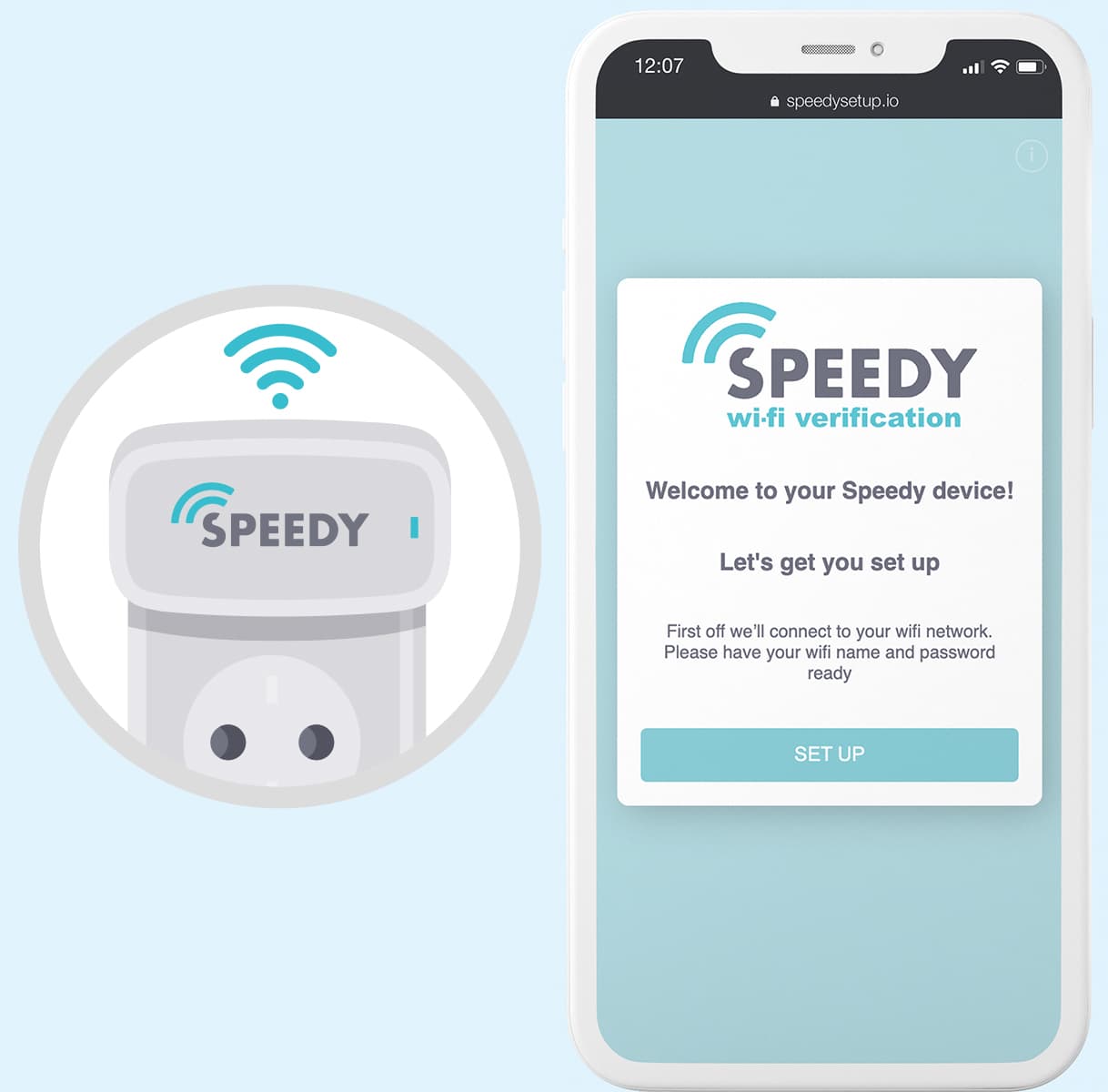
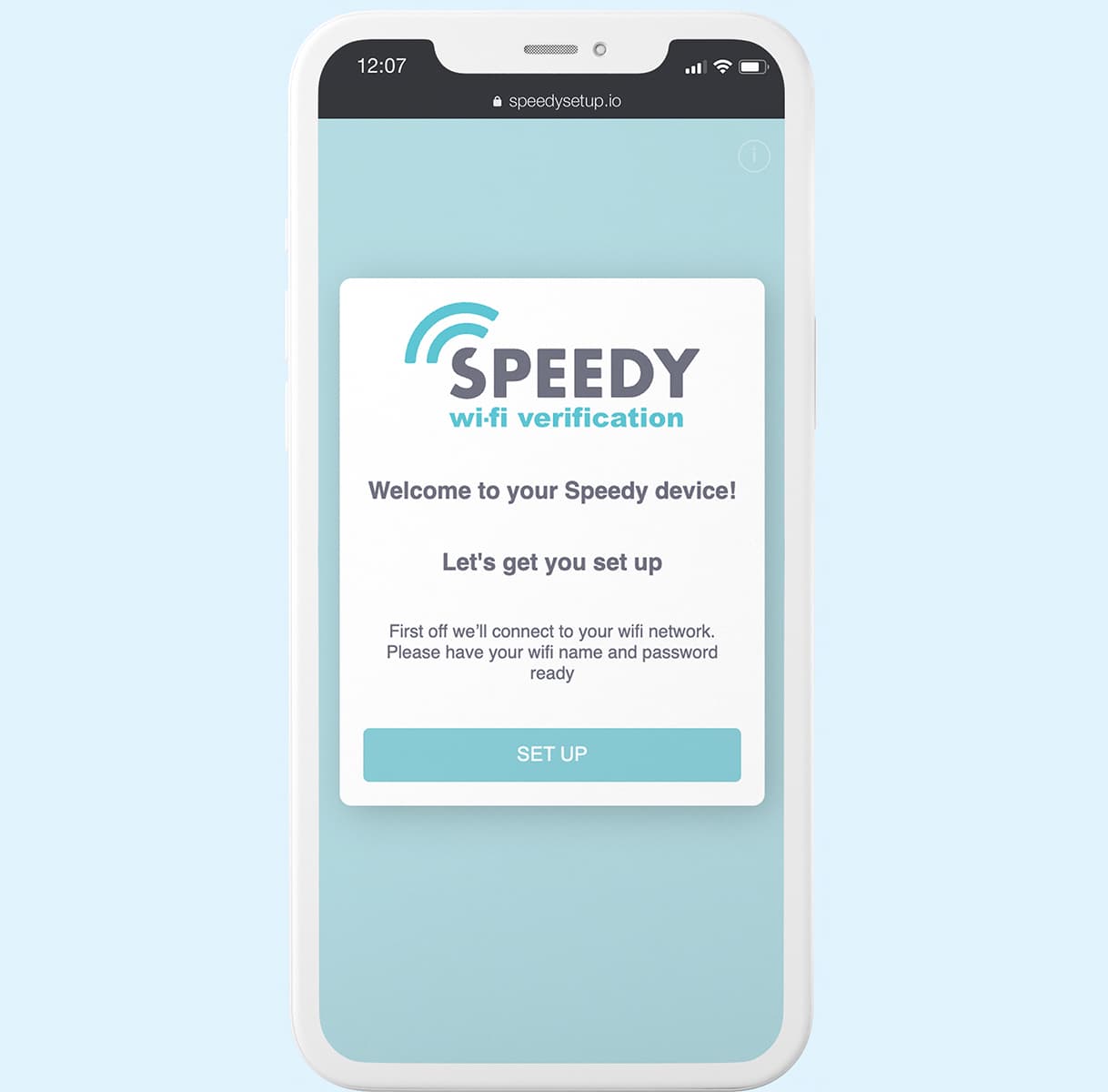
Connect to the Speedy device setup portal on your device
Go to the following URL:
Once connected, tap on the SET UP button.
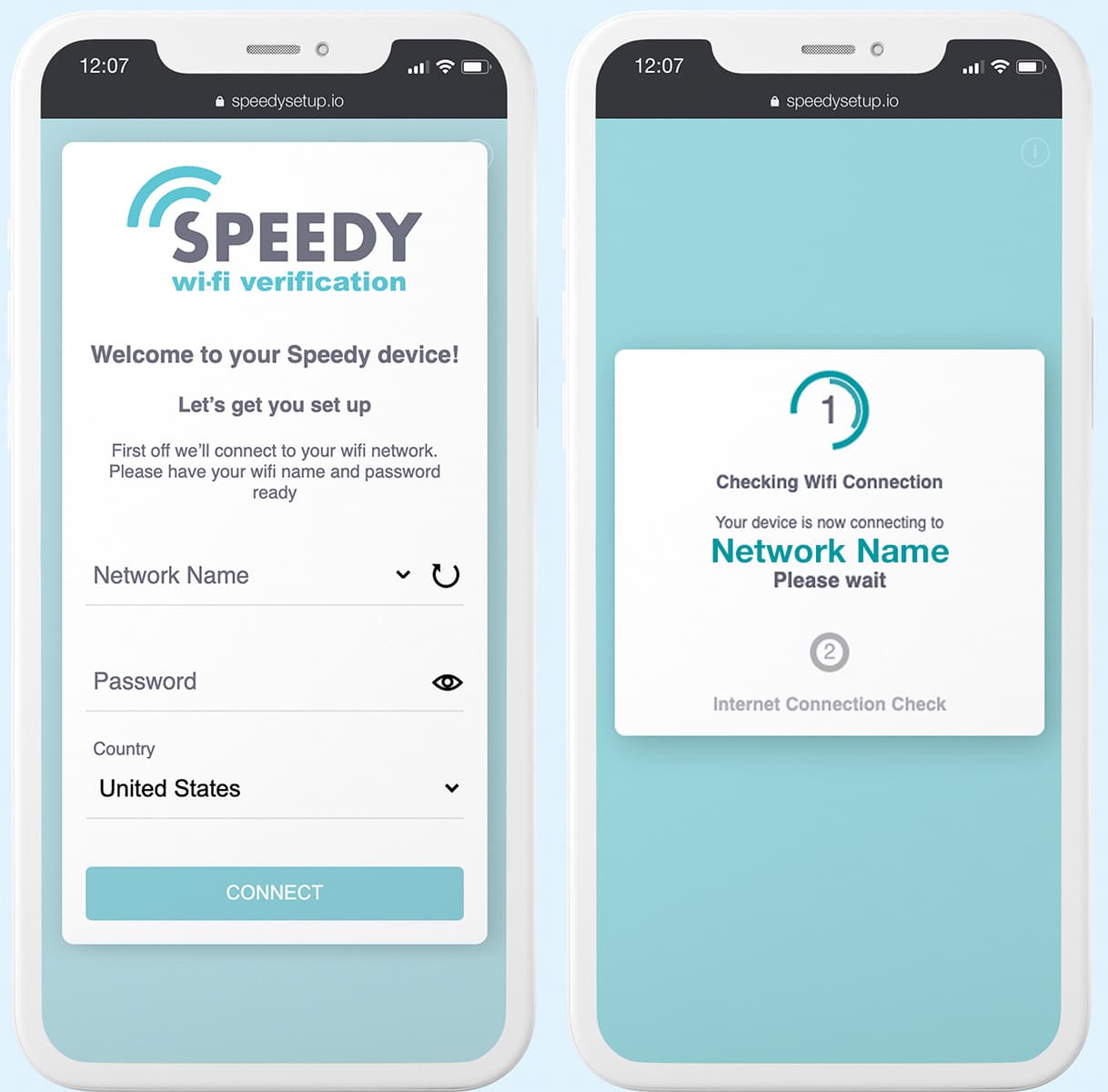
Connect the Speedy device to the network
Select your wifi name network name dropdown.
If your network name does not display on the dropdown, tap the button to reload networks. If it’s a hidden network, enter the Wi-Fi name manually.
Enter your Wi-Fi password.
Select your country from the dropdown.
Tap the CONNECT button.
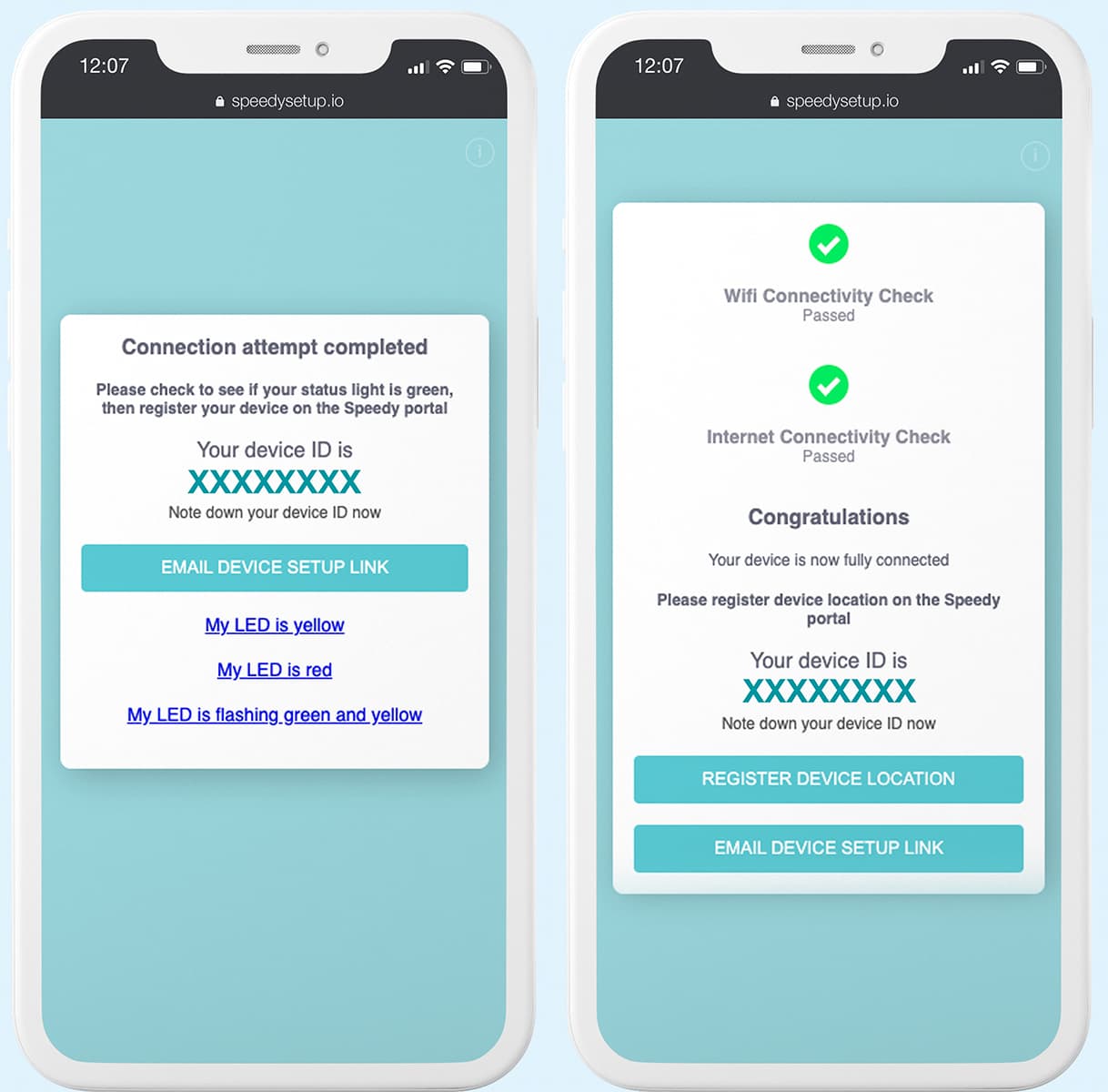
Wi-Fi connection completion
Once you’ve entered the details, the Speedy device will attempt to connect to your network.
Once successful, you will receive your 8 digit device ID, please note this down.
You can also email a link to the person who manages the device.
Your status LED will shine green if the network connection has been successful.
If not, please see the troubleshooting section below, or follow the on-screen prompts.
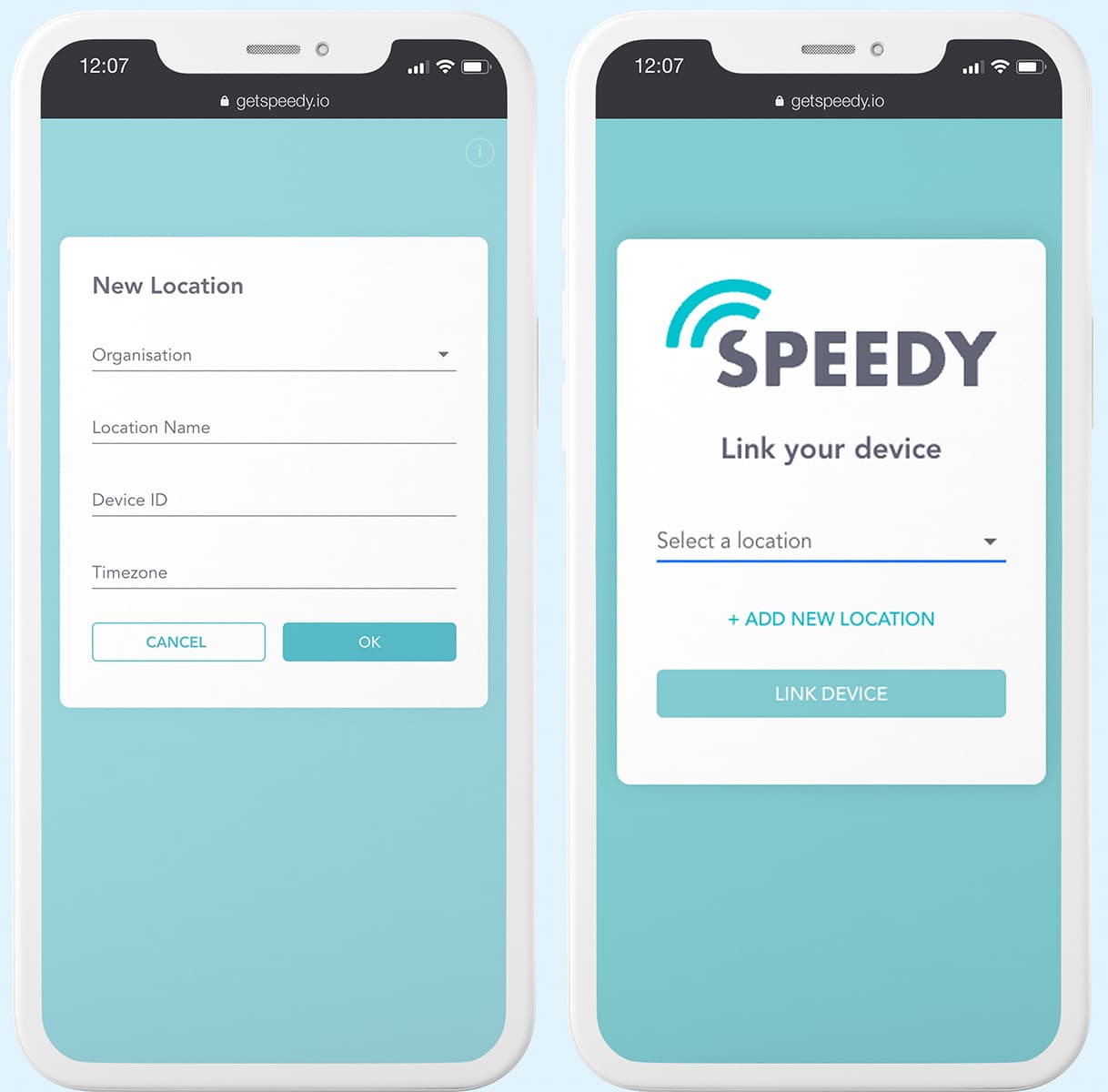
Link device to a location
Once the device is successfully connected to your network, we need to set it up on the Speedy portal. To do this, either follow the emailed link or add it manually to a location on the Speedy portal.
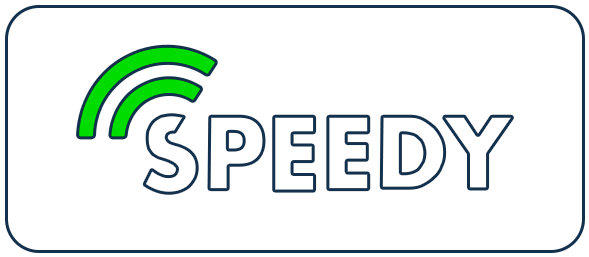
Your device is fully connected and registered.

Your device is connected to your wifi network, but not connected to the internet. Either your internet connection is down, or you need to adjust your firewall settings.

Your device is not connected to the Wi-Fi. Please reconnect to the device and set up Wi-Fi.
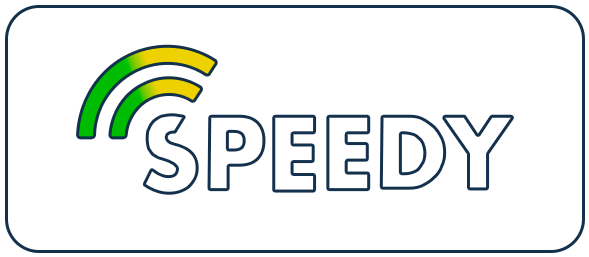
Your device is connected, but not yet registered on the portal.
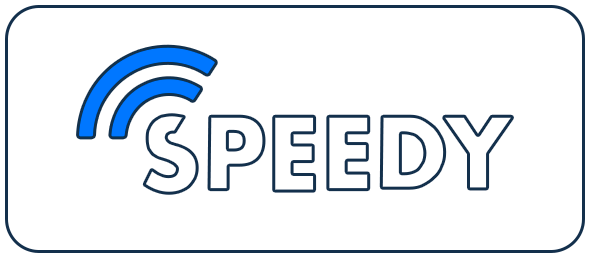
Your device is currently starting up. It will be available for interaction shortly

Your device is restarting. It will be available for interaction shortly. Do not disconnect from power.
After a recent startup or reset, the speedy device takes a minute to start up its access point. Please be patient and wait 1-2 minutes. A few minutes after successfully completing the device registration, the device will stop publishing a Wi-Fi network. If you need to set up the device again, please hit the reset button on the device.
Your device has failed to connect to the Wi-Fi network.
This may be due to an unstable network, device too far from the router, or incorrect wifi credentials.
Tap retry to retry, or tap on “SELECT DIFFERENT NETWORK” to check your credentials or try another network.
The speedy device has failed to connect to the internet.
This may be due to an unstable network, the network not having access to the internet or firewall settings.
Check that your wifi has an internet connection and double-check any firewall settings then:
Tap TRY AGAIN to retry, or tap on “SELECT DIFFERENT NETWORK” to try another network.
A red LED indicates that your Speedy device has failed to connect to your wifi network.
This may be due to incorrect credentials.
Double-check your connection to the Speedy wifi network and refresh the setup page to retry, or reset your device and try again.



© 2026 Speedy.